Step 1: How to Register a Meta Developer Account & Business Manager
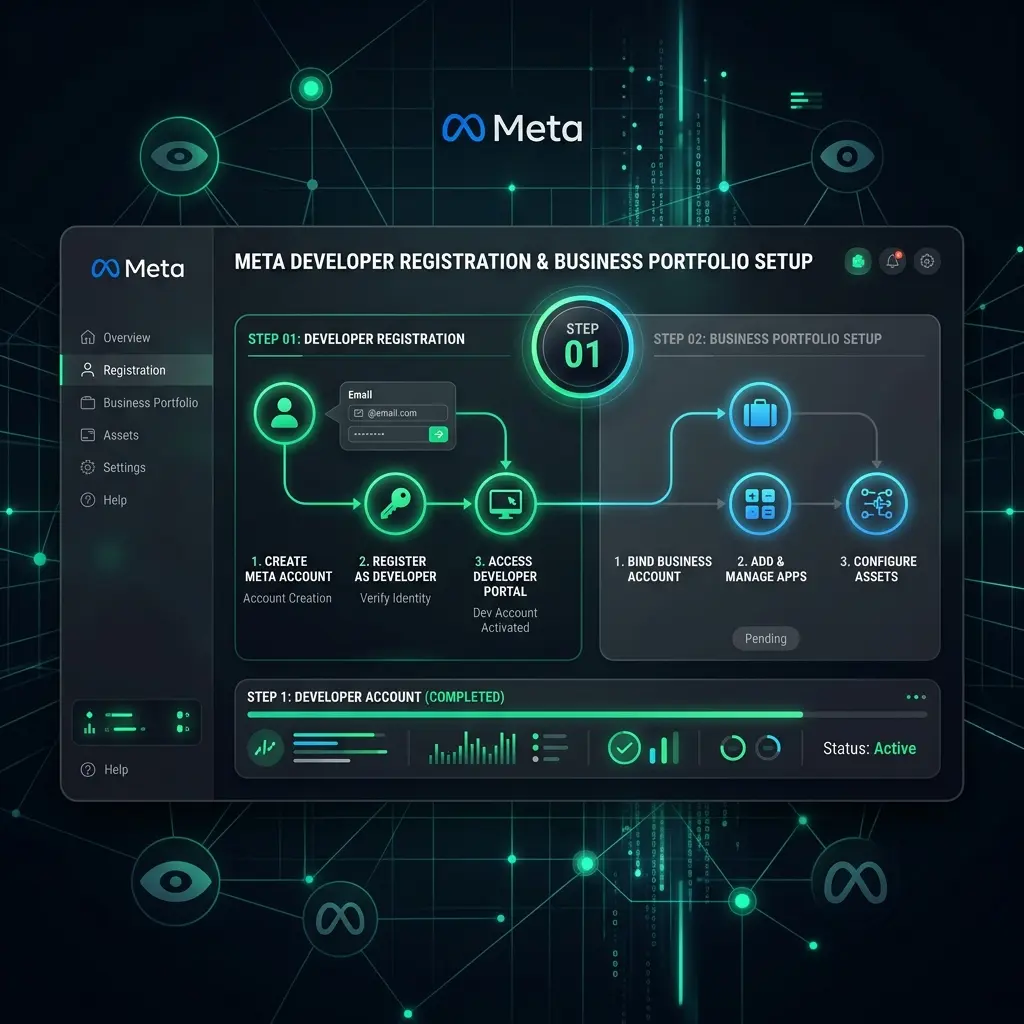
To broadcast messages to thousands of customers without risk of number bans, businesses must register a Meta Developer Account at developers.facebook.com, set up a Meta Business Manager portfolio, and create a Business App with the WhatsApp product.
Table of Contents
- • Introduction: Why Official Meta WABA API Matters for Scaling Brands
- • Step 1: Register as a Meta Developer at developers.facebook.com
- • Step 2: Create a Meta Business Portfolio (Business Manager)
- • Step 3: Create a Meta App of Type "Business"
- • Step 4: Add the WhatsApp Product to Provision Your Sandbox
Introduction: Why Official Meta WABA API Matters for Scaling Brands
In 2026, relying on unofficial WhatsApp scripts or standard mobile WhatsApp Business apps to send customer broadcasts carries massive financial and operational risks. Meta's anti-spam algorithms detect unauthorized mass senders within minutes, leading to permanent phone number bans and lost customer channels.
By connecting directly to the official Meta WhatsApp Business API (WABA), enterprise brands unlock regulated messaging tiers (scaling up to 100,000+ messages per day), multi-agent 1-to-1 live chat, and 0% markup messaging directly through Meta Cloud infrastructure.
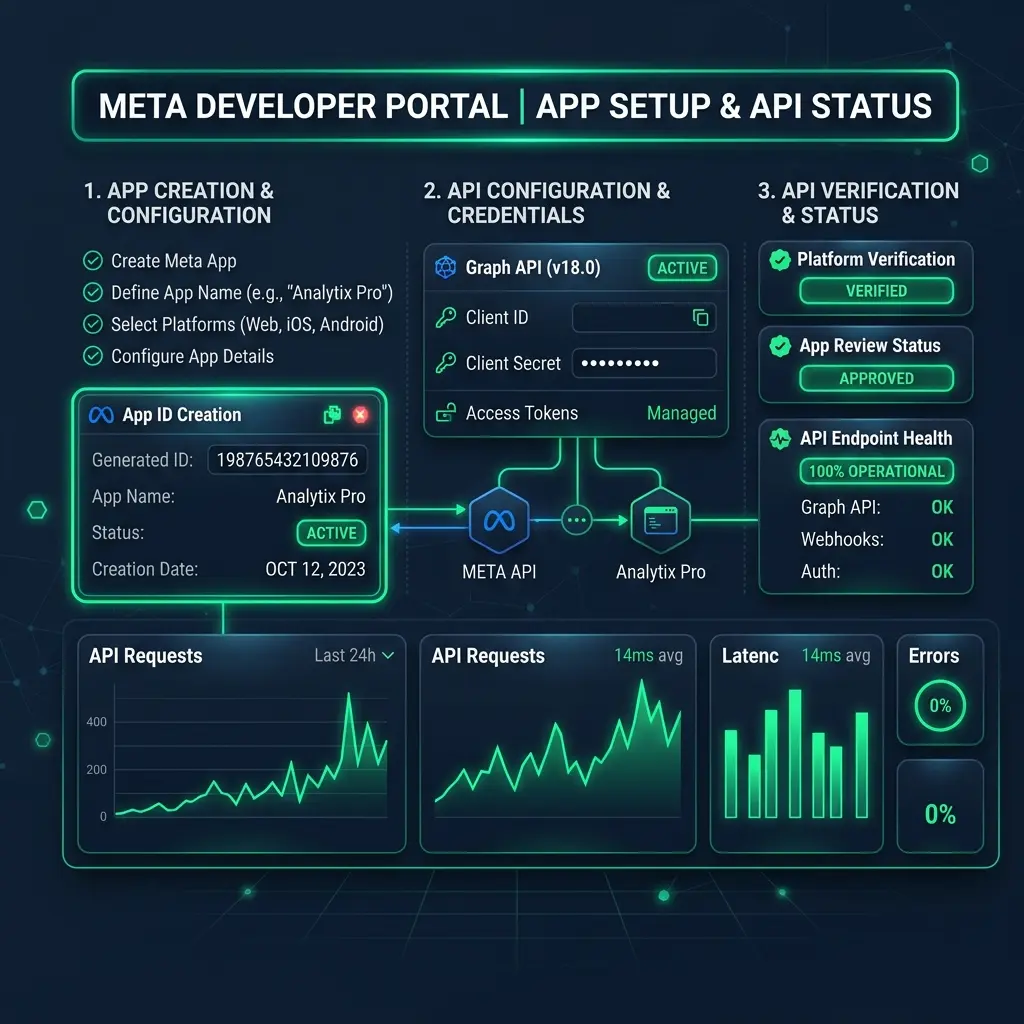
Step 1: Register as a Meta Developer at developers.facebook.com
To begin, your business administrator must establish a developer profile linked to your organization:
- Navigate to developers.facebook.com and click Get Started in the top-right corner.
- Log in using your primary personal or corporate Facebook account (Meta requires a verified personal account to establish human identity).
- Complete the 2-step SMS mobile OTP verification to verify your phone number.
- Select Developer or Business Owner as your primary occupation role.
Step 2: Create a Meta Business Portfolio (Business Manager)
If your enterprise does not already have an official Meta Business Manager portfolio, you must establish one to manage billing and legal entity assets:
- Visit business.facebook.com and click Create a Business Portfolio.
- Enter your official Legal Business Name (e.g. Acme Global Solutions Ltd.).
- Enter your primary corporate email address for administrative notifications.
- Check your email inbox and click the verification confirmation link sent by Meta.
Step 3: Create a Meta App of Type "Business"
Once inside the Meta Developer Console, you must create a dedicated application wrapper to manage your WhatsApp API endpoints:
- Click My Apps > Create App in the Developer Console navigation.
- When prompted for use-case selection, choose Other > Business (this unlocks WhatsApp, Messenger, and Instagram Graph APIs).
- Enter your App Display Name (e.g.,
Patify-WABA-Engine). - Select and link your Meta Business Portfolio created in Step 2.
- Click Create App and confirm your account password.
- Once created, note your App ID (a 15-digit number, e.g.
123456789012345) and App Secret (a 32-character string). You will find these under App Settings > Basic.
Step 4: Add the WhatsApp Product to Provision Your Sandbox
On your newly created app dashboard, scroll down to Add Products to Your App and click Set Up on the WhatsApp card:
- Meta will automatically initialize your WhatsApp Developer Test Sandbox.
- You will be assigned a temporary test phone number and test recipient slots to send initial API payload tests.
- Your account is now fully provisioned to generate permanent System User Tokens and connect live phone numbers in Step 2!
Once connected, explore our complete WhatsApp marketing campaign launch checklist to execute your first broadcast, and discover the full range of Meta WABA features available to your enterprise.